Using Anki for Japanese Courses
This document was last modified on: Saturday, August 8, 2026, 8:48pm
Introduction
Anki is a popular flashcard application for language learning that has been used by many people to study and review vocabulary, grammar, and other course material over time.
We have created Anki decks for studying Japanese in a manner consistent with classroom instruction. These decks are designed to reinforce the material introduced in class and provide structured practice outside the classroom.
Basic Workflow
Download
Download the assigned deck from the Japanese Anki Decks section below. Make sure that the deck matches your course and textbook before continuing.
Import
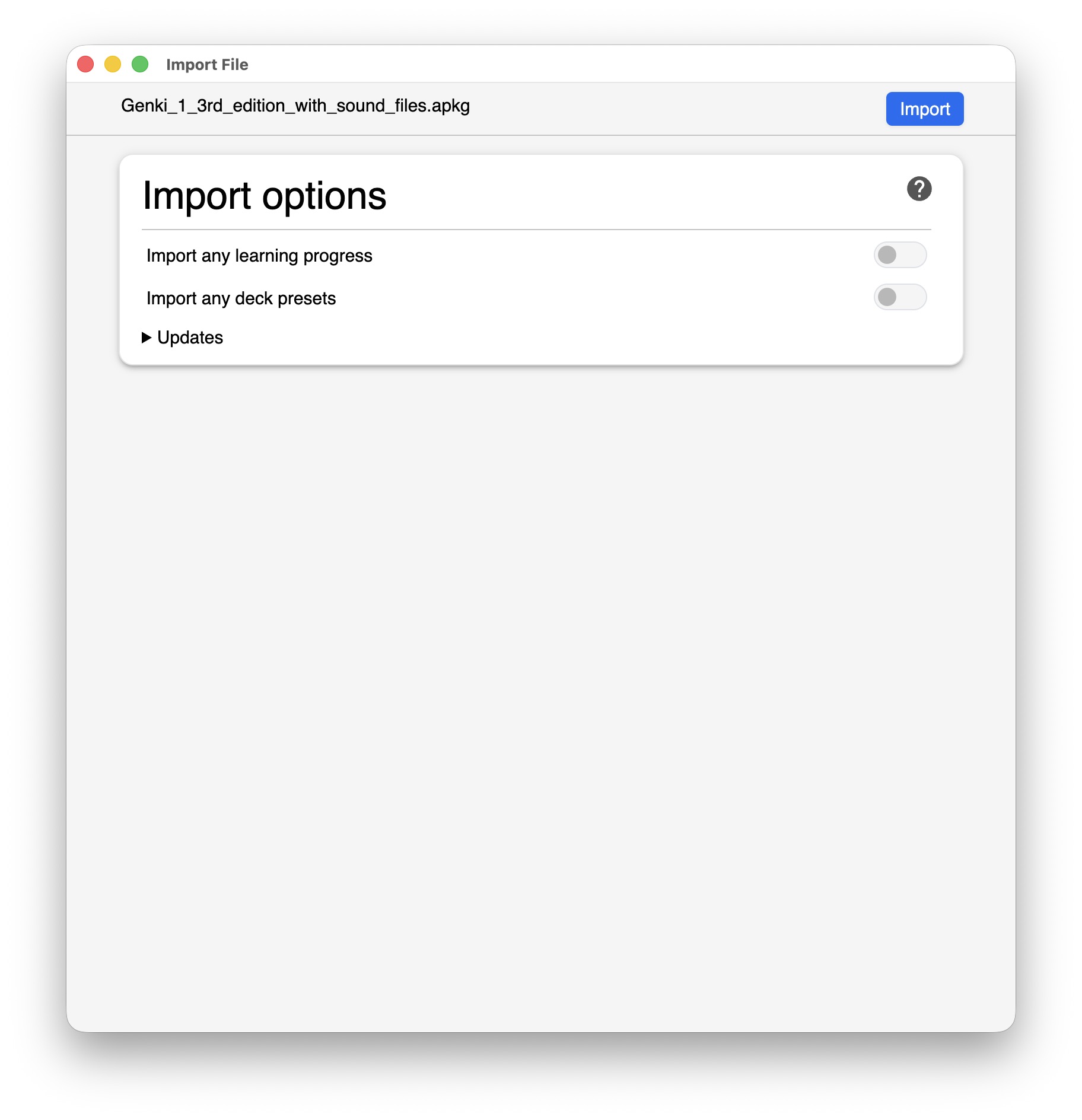
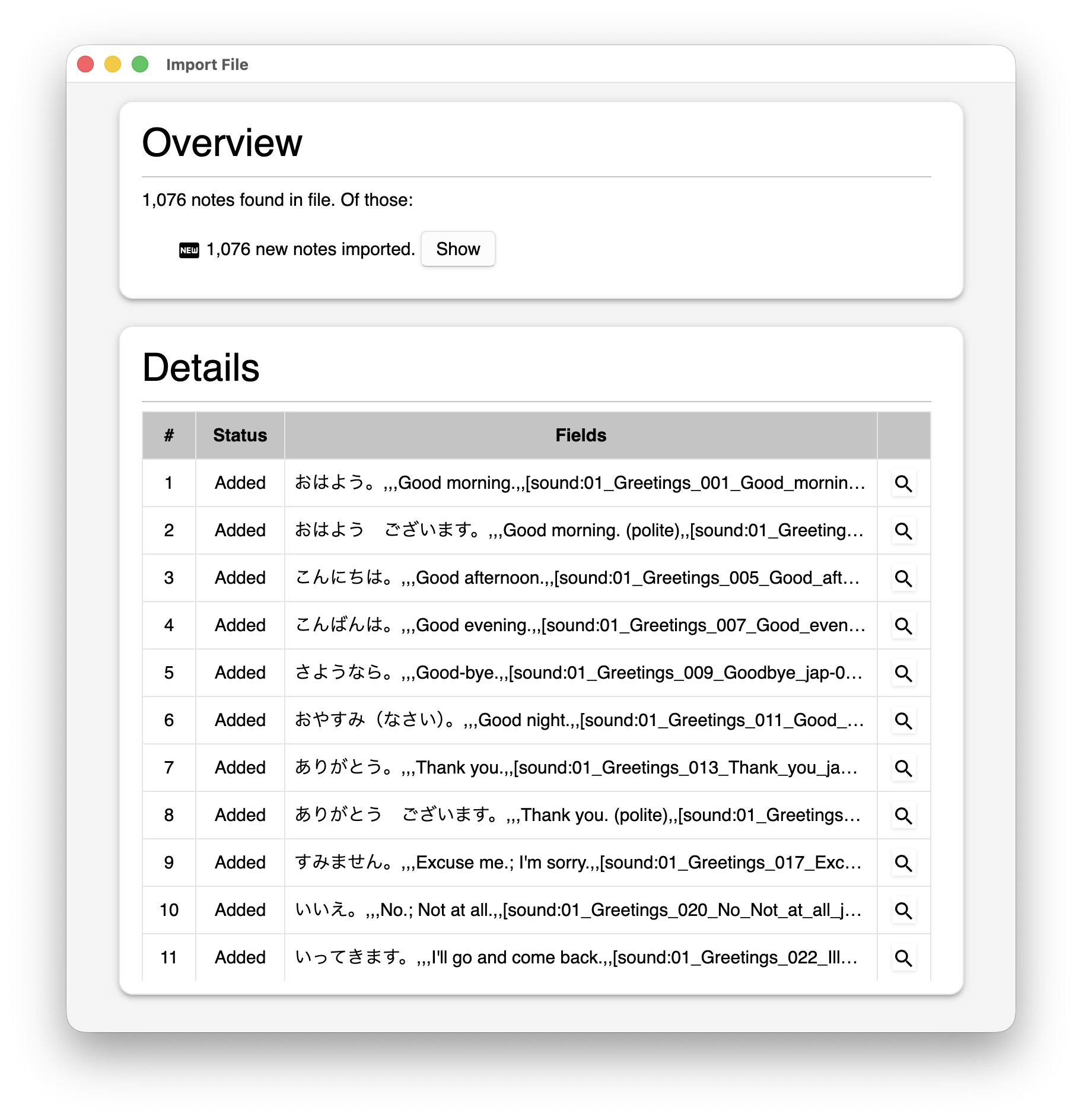
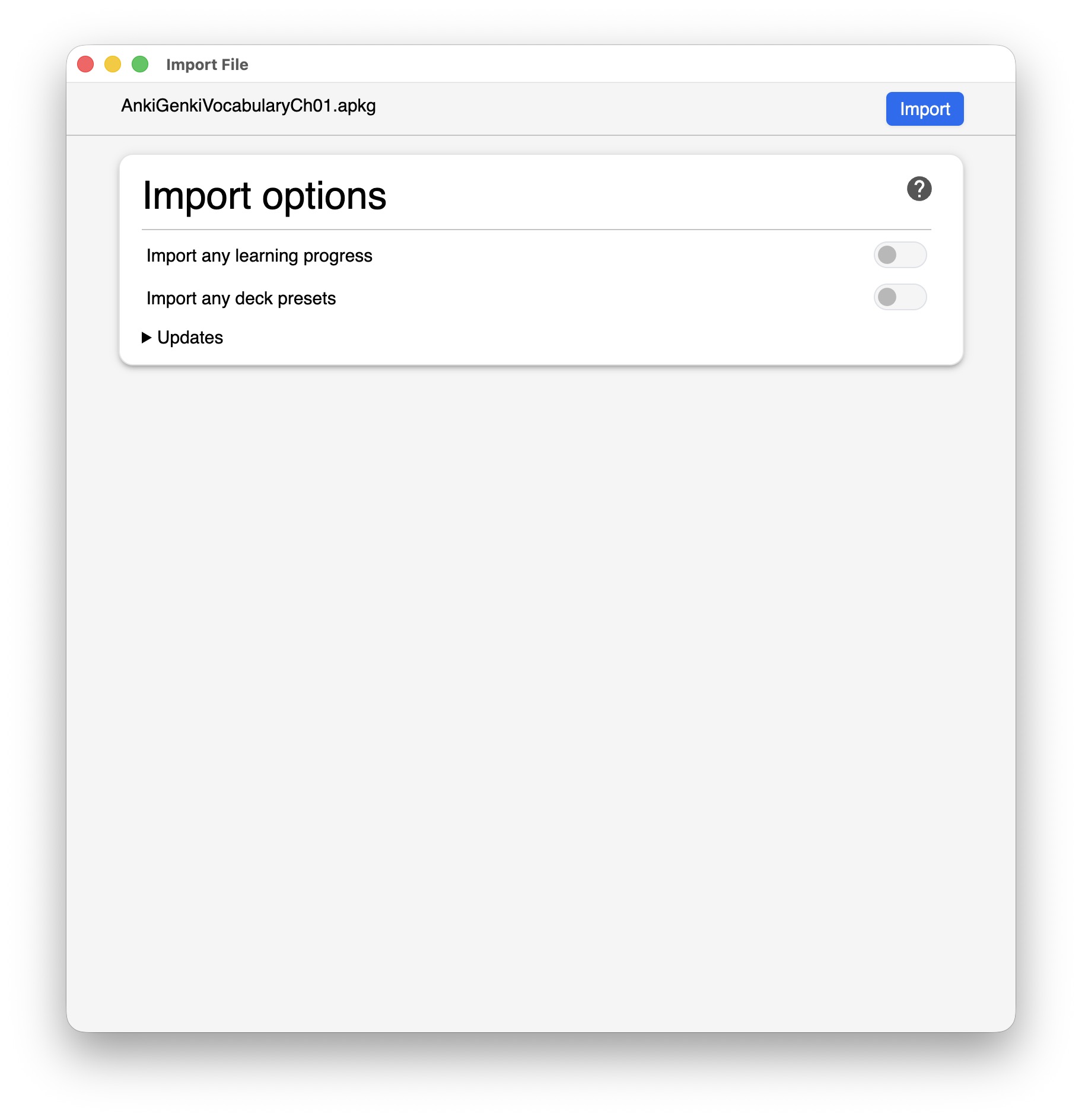
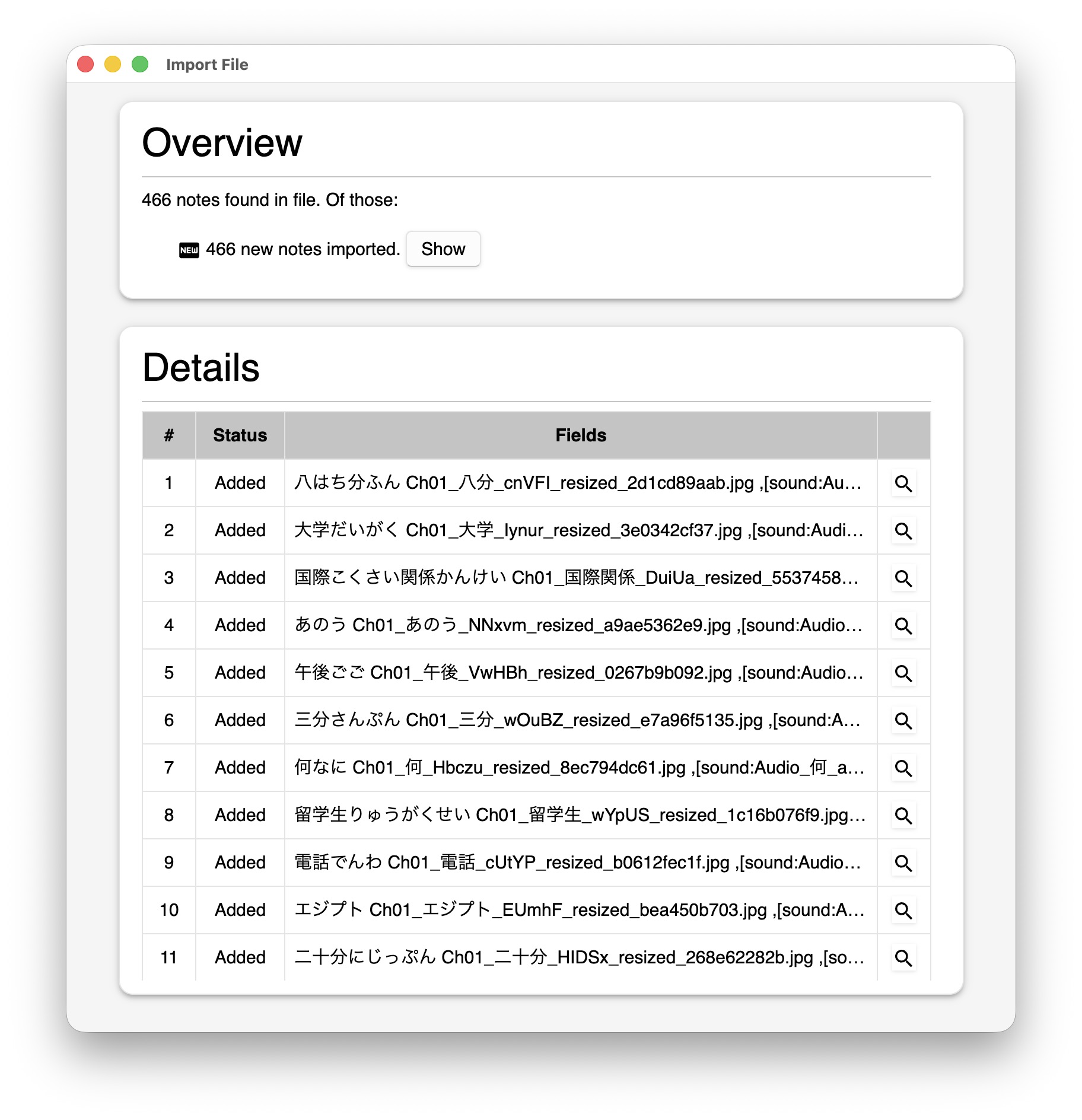
Open the downloaded .apkg file with Anki and confirm the import. The assigned deck will then appear on your main Decks screen.
Review
Study all cards due for the day. Try to recall each answer before revealing it, and choose the answer button that honestly reflects how well you remembered.
Repeat
Return to Anki every day, even when only a few cards are due. Short, consistent reviews help you retain the Japanese introduced in class.
How to Install Anki
The best approach is to use Anki on a cellphone because it allows you to study wherever you are and makes it easier to complete a short review every day. Android users can install the free AnkiDroid app. The official AnkiMobile app for iPhone and iPad is not free, so iOS users should check the current price in the App Store before downloading it.
You may also install Anki on a Windows, macOS, or Linux computer. A computer can be helpful for importing decks and setting up synchronization, while a cellphone is generally the most convenient device for regular study.
| Platform | Application | Cost | Download |
|---|---|---|---|
| Windows | Anki | Free | Official download |
| macOS | Anki | Free | Official download |
| Linux | Anki | Free | Official download |
| Android | AnkiDroid | Free | Google Play |
| iPhone / iPad | AnkiMobile | Paid | App Store |
AnkiWeb can also be used in a browser. If you use Anki on more than one device, create an AnkiWeb account and synchronize your collection so that your study progress remains up to date.
How to Use an Anki Deck
- Download the deck file from the Japanese Anki Decks section.
- Locate the downloaded file. Its filename should end in
.apkg. - Double-click the file. If Anki does not open, choose File → Import in Anki and select the file.
- Confirm the import. The new deck will appear on the main Decks screen.
What the import process looks like
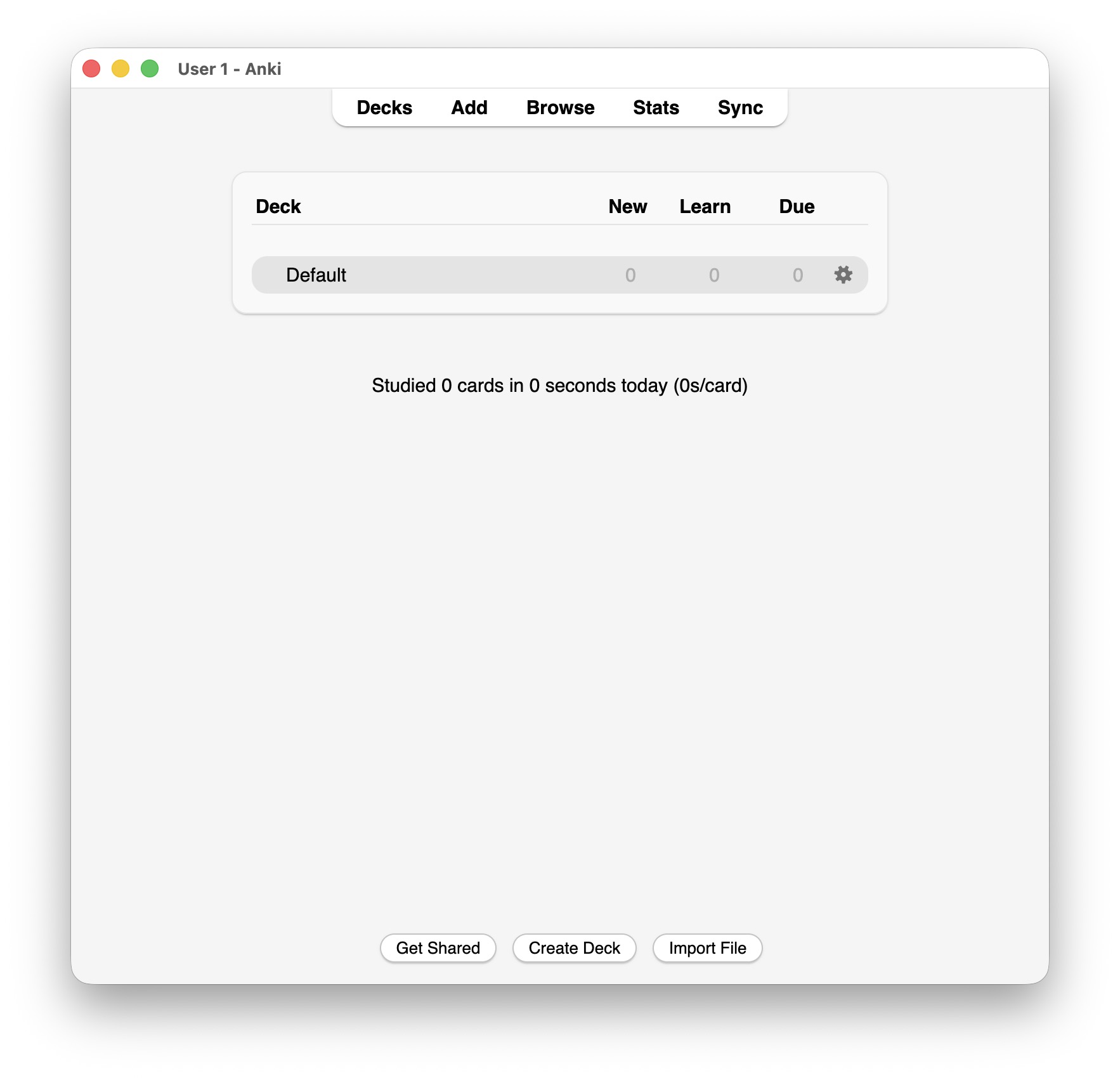
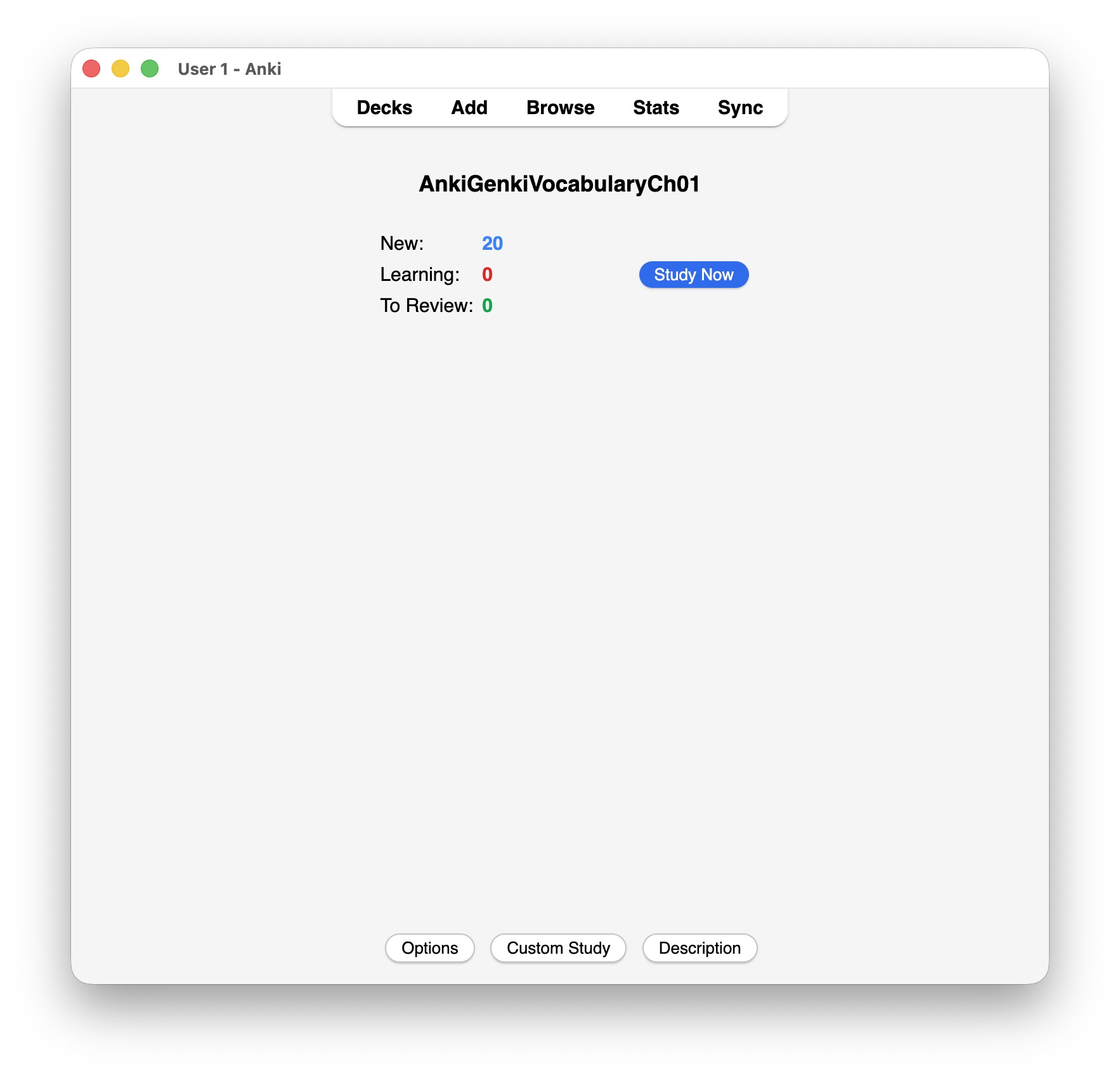
- Select the assigned deck on the Decks screen.
- Click Study Now.
- Read the question and try to recall the answer before clicking Show Answer.
- Compare your answer and choose Again, Hard, Good, or Easy.
- Continue until Anki reports that your review is complete.
Tip: “Good” should be your usual answer when you remembered the card correctly.
Examples of review cards
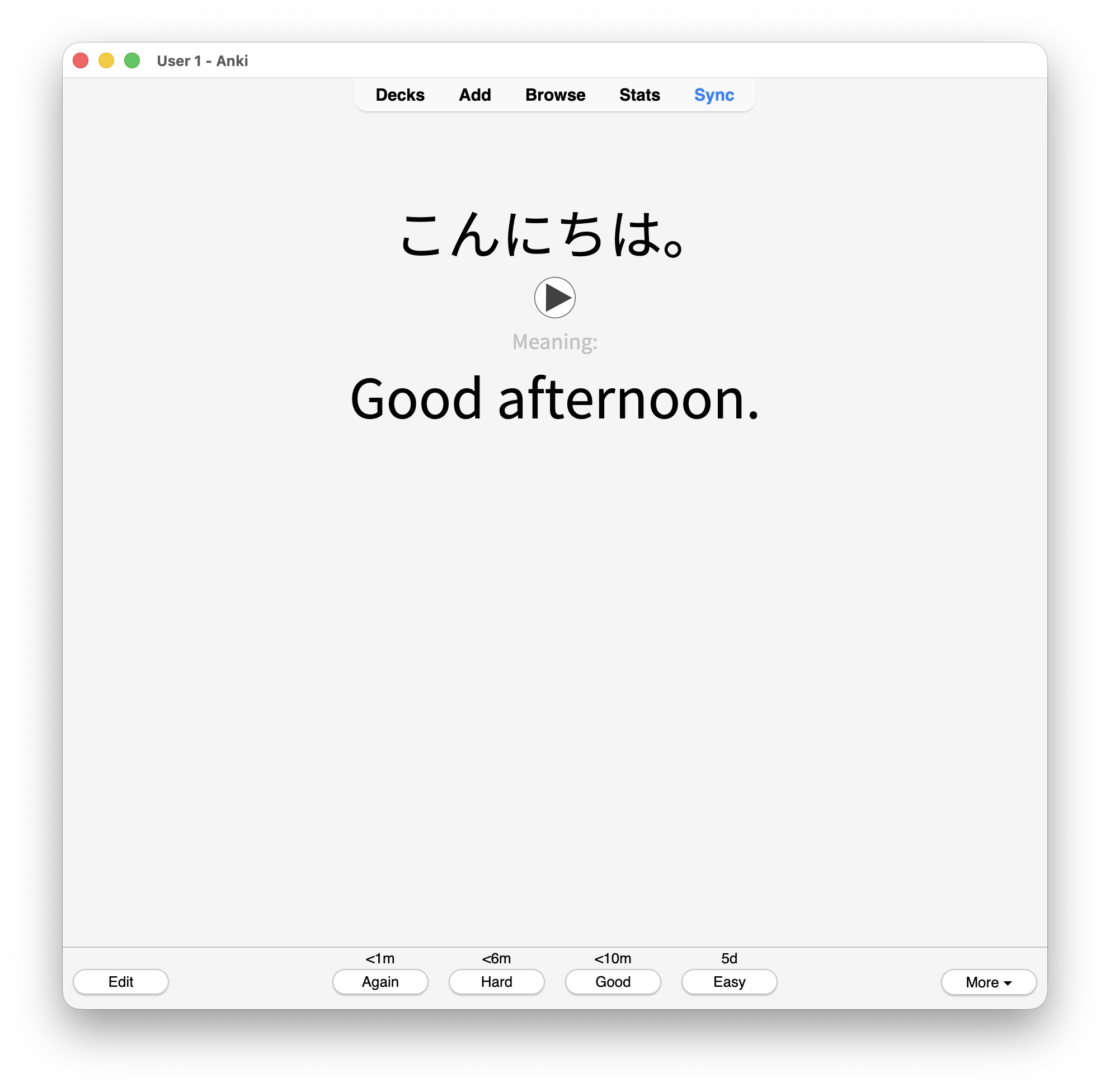
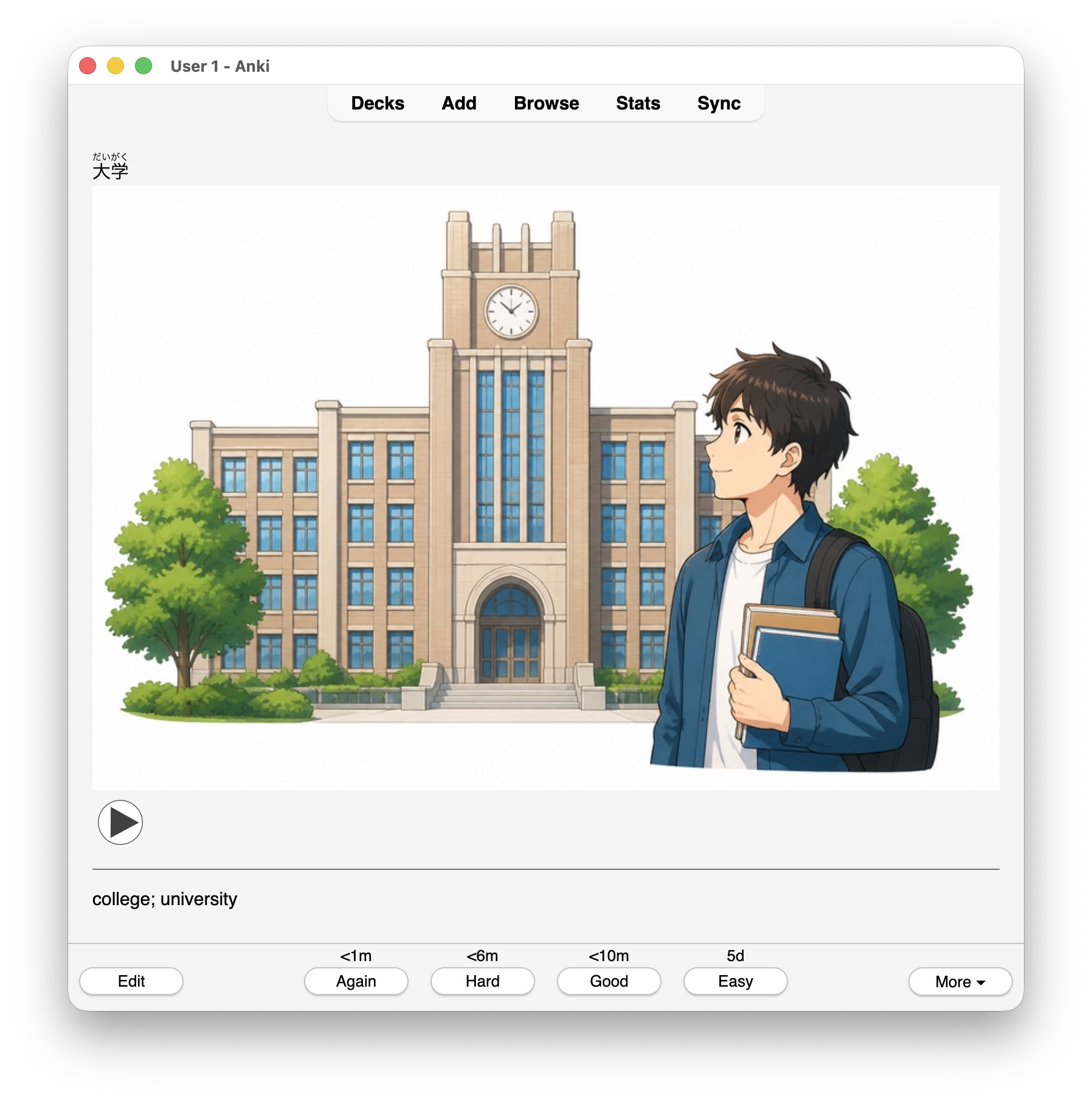
- Create a free account at AnkiWeb.
- Click Sync in the upper-right corner of Anki and sign in.
- For the first sync, choose Upload to AnkiWeb if your course deck is already on the computer.
- Sign in with the same account on your other devices and sync again.
Japanese Anki Decks
Download the vocabulary practice deck for the chapter currently assigned in your course. Each chapter is provided as a separate .apkg file so that your Anki practice remains consistent with the vocabulary introduced in class.
Genki I: Chapters 00–12
Genki II: Chapters 13–23
Download only the chapter assigned by your instructor. After the file downloads, open it with Anki and confirm the import.